The Flustr keyboard: dictate in every app.
Mail, WhatsApp, Notes, anywhere you type. Speak, and Flustr writes it clean, right on this iPhone. Casual in chats, with greeting and sign-off in email.
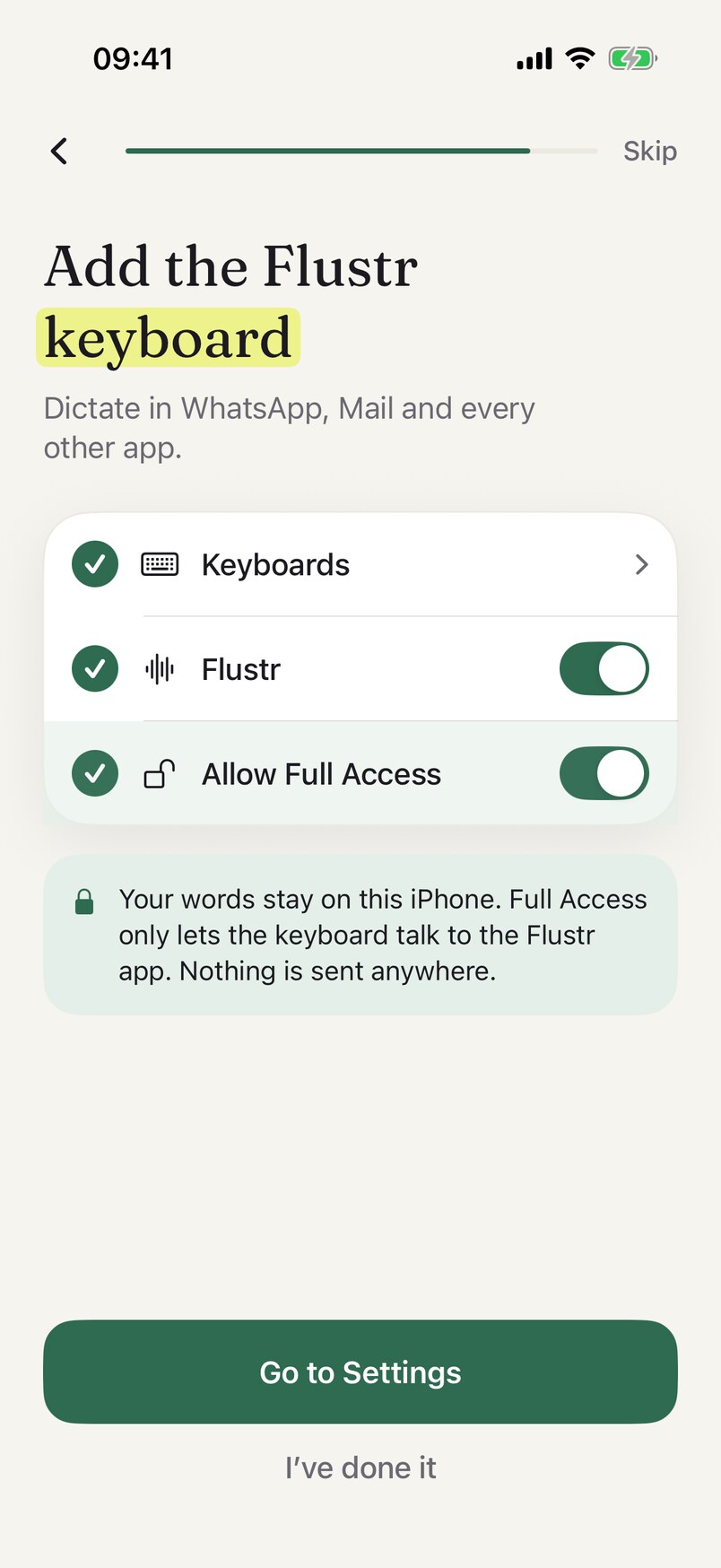
Set up in three steps
- Add the keyboard in SettingsSettings > General > Keyboard > Keyboards > Add New Keyboard > Flustr, then switch on Allow Full Access. Turn it on once.
- Switch to it with the globe keyIn any app, tap and hold the globe key and choose Flustr.
- Tap the mic and talkFlustr starts listening, you swipe back to your chat and just talk. Tap the check mark when you are done.
Full Access only lets the keyboard talk to the Flustr app. Nothing is sent anywhere. More in the FAQ.
- iMessage
- Notes
- Slack
What it writes
Clean text
Punctuation and real lists, without saying "comma". Filler words removed on iPhone 15 Pro and newer.
Written for the context
Casual in chats, polished with greeting and sign-off in email.
Learns your names
Correct a word once. Flustr spells it your way from then on.
Translate by voice, from the keyboard
Pick a language on the Flustr keyboard, speak in your own, and the translated text is typed into the chat, in WhatsApp, iMessage, Mail and every other app. Flustr translates on your iPhone while you speak, so the message is ready the moment you stop. It can translate into 20 languages: see the full list.
Private and offline
After a one-time download of about 650 MB, speech recognition, clean-up and translation run on your iPhone. There is no account and no email. Read the privacy policy.
Flustr works on every iPhone 11 and newer with iOS 26 or later. The AI features (filler-word clean-up, lists, polished emails and meeting summaries) use Apple Intelligence and need iPhone 15 Pro or newer. On other iPhones you still get voice typing and translation, as plain text.