Meeting notes
A meeting becomes minutes in seconds.
Record with the screen locked. Flustr labels each speaker and writes the summary, minutes and action items, then translates or exports them as PDF.
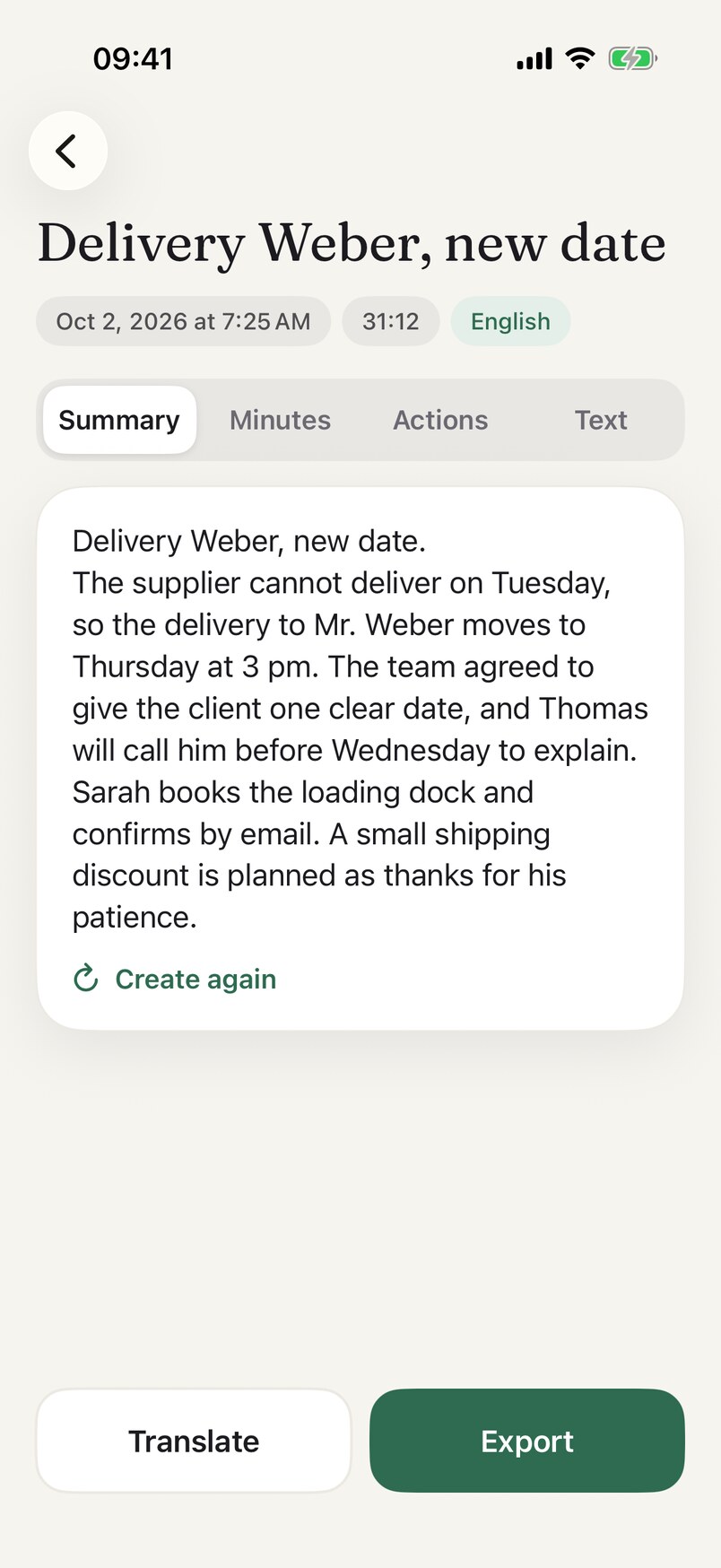
What you get after a recording
Speaker labels
Each speaker is labelled in the transcript.
Summary and minutes
Decisions and next steps, written for you after every recording.
Action items
Who does what, listed on its own tab.
Translate
Translate the summary, minutes or transcript into another language, on your iPhone.
Export as PDF or text
Share transcripts, minutes and translations.
How it works
- RecordStart a recording in Flustr and keep going with the screen locked.
- ReadOpen the recording to find the Summary, Minutes, Actions and Text tabs.
- ShareTap Translate or Export.
Apple Intelligence note
iPhone 15 Pro and newerThe summary, minutes and action items use Apple Intelligence, so they need iPhone 15 Pro or newer (iPhone 15 Pro, 15 Pro Max and every iPhone 16 and newer). On every other iPhone 11 or newer with iOS 26 you get the plain transcript and plain translation.
Recordings are processed on your iPhone, and they use space until you delete them. See the privacy policy.